From AI Video to 2D Sprite: The Full Workflow That Actually Works
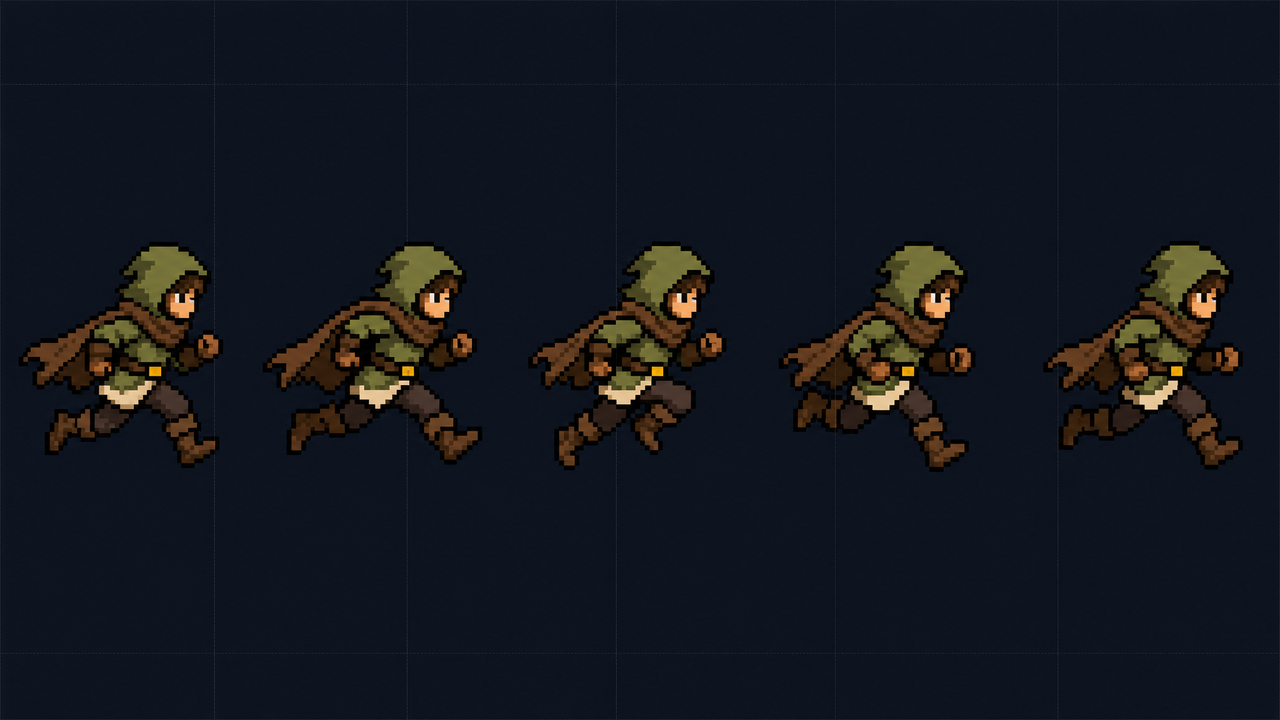
Hand-drawing a walk cycle is one of those tasks that humbles you fast. Eight frames, maybe twelve, and every one has to flow into the next or the whole thing looks like the character is wading through pudding. So when video models like Veo, Sora, Kling, and Runway started producing genuinely usable short clips, a lot of us looked at them and thought the same thing: can I just slice that into sprite frames?
You can. But there's a real workflow to it, and skipping steps gets you a muddy, flickering animation with a hitch in the loop. Here's how I actually do it, with the gotchas that cost me a few evenings to figure out.
The short version of the pipeline
Three stages, and they map cleanly:
- Image first. Generate a single still of your character in a clear, readable pose. Get the design exactly right here, because you're about to lock it in.
- Animate the still. Feed that image to a video model with an image-to-video prompt describing one specific motion. Short clip, flat background.
- Extract the frames. Pull a clean loop out of the video, drop the framerate, and export a PNG sequence (or a looping GIF/APNG) ready for your engine.
The reason image-to-video beats text-to-video for sprites is consistency. If you prompt a video model from text alone, the character drifts: the jacket changes color, a hand sprouts an extra finger halfway through, the face subtly remodels itself. Starting from a fixed image gives the model an anchor. It still drifts a little, but you've cut the variance enormously.
Stage one: the source image
Prompt for a clean, isolated character on a flat solid-color background. Not a scene. Not a forest. A single matte color, ideally one that doesn't appear anywhere on the character. Chroma-key green works if your character has no green on them; I often use a flat magenta or a mid-grey instead, depending on the palette.
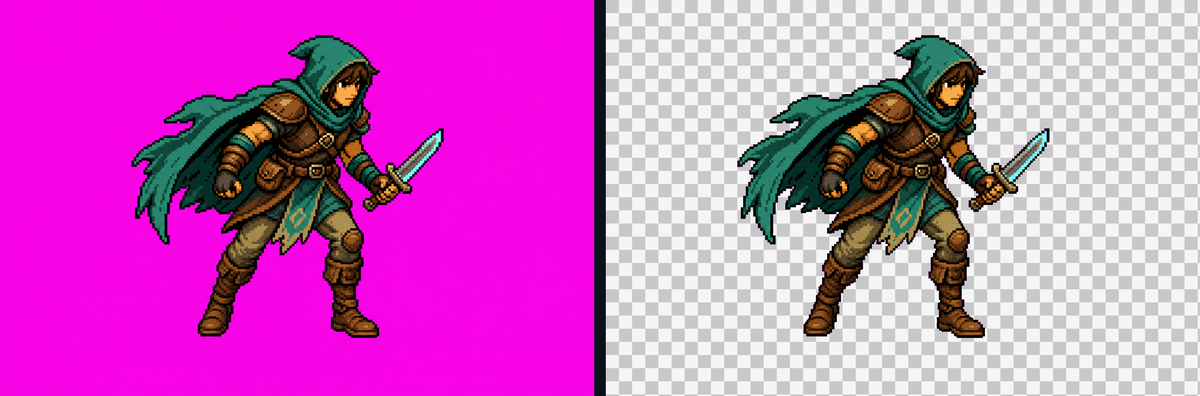
Why solid color matters: you're going to want a transparent background eventually, and keying out one consistent color is trivial. Keying a character off a busy AI-painted backdrop is a nightmare of manual masking, frame by frame. Solve it at the source.
Frame the pose so the character has breathing room on all sides. Video models love to drift the subject toward the edges, and if a limb clips out of frame mid-animation you lose those frames. Side-on or three-quarter views read best as sprites for most genres. Get the silhouette clean and readable at small sizes, because that thumbnail-sized version is what players actually see.
Stage two: animate it into a short clip
Use the image-to-video mode and describe one motion. "Character idles, breathing, slight sway, weapon shifts." Or "character runs in place, cycle." Keep the camera locked. Explicitly say static camera, no zoom, no pan in the prompt, because every video model's default instinct is to add cinematic camera moves you do not want for a sprite.
Two things to ask for that pay off later:
- A cyclical motion. Idle, run, hover, attack-and-reset. Anything that naturally returns to where it started gives you a shot at a seamless loop.
- A short duration. Two to four seconds is plenty. Longer clips drift more and give you more frames to wade through, with no benefit.
Keep the background instruction in this prompt too. "Subject on a flat solid magenta background, background unchanged throughout." Models will happily repaint your clean backdrop into a gradient if you let them.
Generate a few takes. This stage is a slot machine and you should treat it like one. Pick the take where the motion loops most naturally and the character holds its design.
Stage three: extract a clean loop
This is where most people undercook it, and it's the part the tool on this site is built for. Load the clip into Sprite Frame Extractor, scrub to find your loop range, set an FPS, and export. It all runs locally in the browser, so your video never gets uploaded anywhere. But the decisions you make here are what separate a clean sprite from a janky one.
Pick 12 to 15 FPS, not 30
This trips up everyone coming from video. Your clip is probably 24 or 30 fps. Your instinct is to keep all those frames for smoothness. Don't.
Classic 2D animation runs "on twos" — roughly 12 drawings per second — and decades of hand-animated games look great at that rate. A sprite at 12 to 15 fps reads as crisp and deliberate. A sprite at 30 fps reads as noisy, because at small sizes the in-between frames just add subtle wobble and AI shimmer rather than perceptible motion. You also store and load less than half the textures.
Concretely: a 2-second idle at 12 fps is 24 frames. The same idle at 30 fps is 60 frames that mostly look identical to their neighbors. Sample down to 12-15 and you keep the motion while throwing away the noise. The extractor lets you set the FPS basis so you're grabbing every Nth frame rather than all of them.
Find the seamless loop range
A loop is seamless when the last frame flows into the first as smoothly as any frame flows into the next. So scrub through and find two moments in the clip where the pose matches — the bottom of an idle bob, the same point in a run stride — and set your in and out points there.
This is also why you asked for cyclical motion upstream. If the underlying clip never returns to a matching pose, no amount of trimming gives you a clean loop, and you'll see a visible pop every cycle. Spend the time here. A good loop range found by eye beats any automatic seam-fixing.
Avoid the duplicated first and last frame
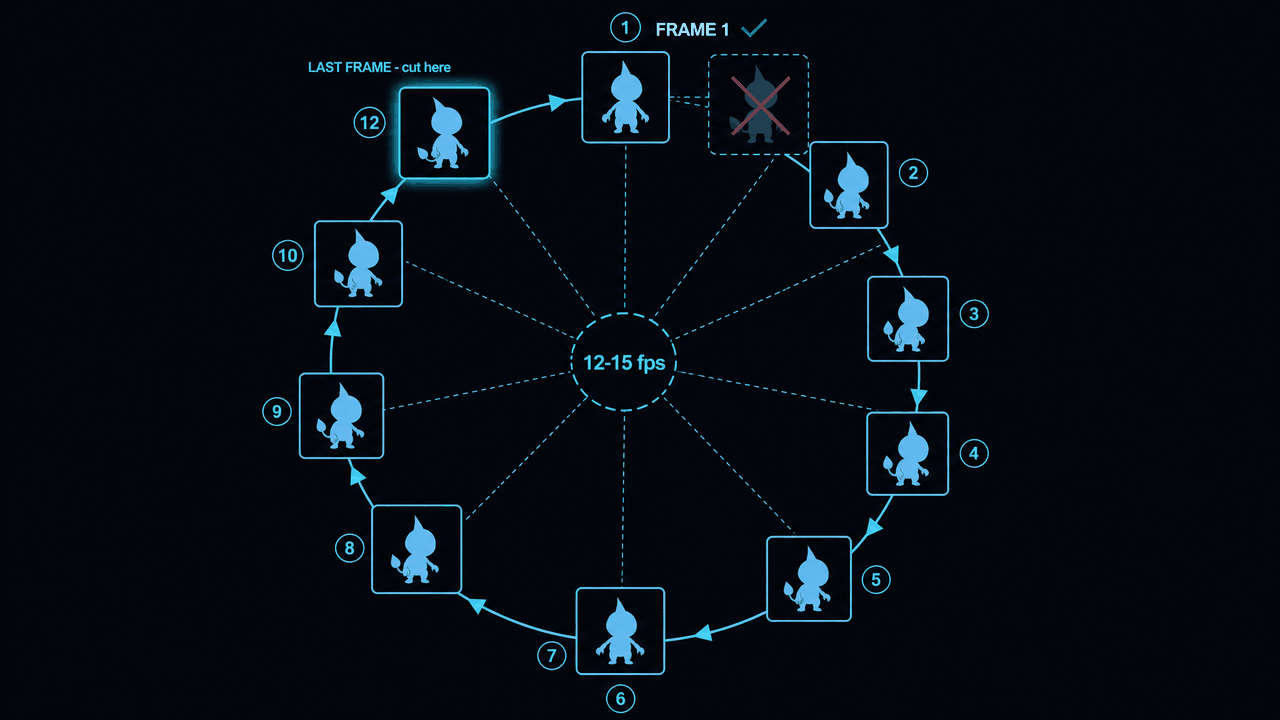
This is the single most common sprite-loop bug, and it's worth understanding precisely. A looping animation player shows frame 1, 2, 3 … N, then jumps back to frame 1. If your last frame is identical to your first frame, the player shows that pose twice in a row — once as frame N, once as frame 1 — and you get a tiny stutter every loop. The motion appears to hang for a beat at the seam.
The fix: your loop should be exclusive at one end. If frame 1 is the character at the bottom of an idle bob, the last frame you keep should be the frame just before it returns to the bottom — not the return itself. Cut on the frame before the match, not on the match. Think of it as a clock: you want 11 o'clock as your last frame, not 12, because 12 is where frame 1 already lives. Get this right and the loop is invisible. Get it wrong and every player will feel the hitch even if they can't name it.
Cleanup and into the engine
Export your PNG sequence and key out the solid background to get transparency. If you only need a quick preview or a UI element, a looping GIF or APNG straight out of the extractor is fine. For actual gameplay sprites you want individual transparent PNGs (or pack them into a sheet — there's a companion slicer tool for going the other direction).
You'll often want a light manual pass: nudge any frame where the AI hallucinated a stray pixel, and confirm the character's anchor point (usually the feet) stays put across frames so it doesn't slide around in-engine. Fewer frames makes this pass much faster, which is one more reason 12 frames beats 60.
Drop the sequence into Unity, Godot, or whatever you're using, set the playback to your chosen 12-15 fps, enable loop, and watch it. If you see a hitch at the seam, you almost certainly have the duplicate-frame problem — go back and trim one frame off the end.
Is this actually production-ready?
Honest answer: for a lot of indie use, yes. Idle animations, background creatures, ambient critters, hover effects, simple attacks. The AI-video route gets you motion you'd never have time to hand-animate solo. Where it still struggles is tight, gameplay-critical action — precise attack frames where the hitbox has to match the visual exactly, or anything needing perfect frame-to-frame consistency on fine details. For those, you may end up repainting frames by hand anyway.
But as a way to get from "I have a character design" to "it's moving on screen" in an afternoon, the prompt-to-video-to-frames pipeline is genuinely good now. Get the source image clean, ask for one looping motion on a flat background, drop to 12-15 fps, find a real loop, and cut the last frame before it repeats. That's the whole game.
FAQ
Q. Why use 12-15 FPS for sprites instead of the video's native 30 FPS?
Traditional 2D animation runs around 12 drawings per second ("on twos"), and that rate reads as crisp and deliberate. At small sprite sizes, the extra in-between frames from 30 fps don't add perceptible motion — they add subtle wobble and AI shimmer. You also store and load less than half the textures. Sample down to every Nth frame to keep the motion and drop the noise.
Q. How do I get a seamless loop from an AI-generated clip?
Ask the video model for a cyclical motion (idle, run, hover) so the clip naturally returns to its starting pose. Then scrub through and set your in/out points at two moments where the pose matches exactly. If the underlying clip never returns to a matching pose, no trimming will hide the seam — which is why the cyclical-motion prompt upstream matters.
Q. What is the duplicated first/last frame problem?
A looping player shows frame 1 through N, then jumps back to frame 1. If your last frame is identical to your first, that pose plays twice in a row and you get a stutter every loop. The fix is to make the loop exclusive at one end: keep the frame just before the motion returns to the start pose, not the return itself. Cut on the frame before the match.
Q. Why image-to-video instead of text-to-video for making sprites?
Consistency. Pure text-to-video lets the character drift between frames — colors shift, fingers multiply, faces remodel. Generating a single locked still first and feeding it to the video model's image-to-video mode anchors the design, so the character holds together across the clip. It still drifts a little, but far less.
Q. Why generate the character on a flat solid-color background?
You'll want transparency eventually, and keying out one consistent matte color is trivial — whereas masking a character off a busy AI-painted scene is manual, frame-by-frame work. Pick a color that doesn't appear on the character (flat magenta or mid-grey often beat chroma green), give the subject room on all sides, and tell the model to keep the background unchanged throughout the clip.
Q. Are AI-video sprites good enough for a real game?
For idles, ambient creatures, hover effects, and simple attacks, yes — it gets solo devs motion they'd never hand-animate in time. Where it still falls short is gameplay-critical action where hitboxes must match the visual exactly, or anything needing perfect fine-detail consistency frame to frame. Those may still need hand-painted touch-ups.