Stop the Foot-Slide: Pivots and Alignment for Sprite Animations
You finish a run cycle, drop it into the engine, hit play, and the character looks drunk. The feet skate across the floor, the whole body bobs up and down a couple of pixels every frame, and the silhouette seems to breathe in a way you definitely did not animate. Nothing is wrong with your art. The problem is how each frame got positioned relative to the others, and it almost always traces back to two decisions made at slice time: trimming and alignment.
I've debugged this more times than I'd like to admit, including on my own tools. Once you see what's happening it's obvious, and once you fix it the same way every time, it stops happening. Here's the whole story.
Why tight-trimming plus centering breaks everything
Say you drew a 12-frame run cycle on a 128x128 grid. Across those frames the character's bounding box changes constantly. On the contact pose the legs are spread wide, so the trimmed box is maybe 90 pixels tall and 110 wide. On the passing pose, where one leg lifts under the body, the box is taller and narrower, say 105 tall and 70 wide. The arms swing forward and back, so the width shifts too. That's normal animation. The pixels are doing what they should.
Now you run an auto-trim that crops the transparent padding off every frame individually. Great for atlas packing, terrible if you stop there. You now have 12 frames of 12 different sizes. When the engine draws a sprite, it has to decide where to put it, and the default in most pipelines is to align by the center of whatever rectangle you handed it.
Center-align two rectangles of different heights and their bottoms don't line up. The contact pose is 90 tall, the passing pose is 105 tall. Centered, the passing pose's bottom sits about 7 pixels lower and its top sits about 7 pixels higher. Frame to frame, the feet jump down and up, the head bobs, and because the trimmed width also changes, the body drifts left and right. That horizontal drift is the foot slide. The character's planted foot, the one that's supposed to be glued to the ground while the body moves over it, wanders because the frame's center keeps moving relative to the foot.
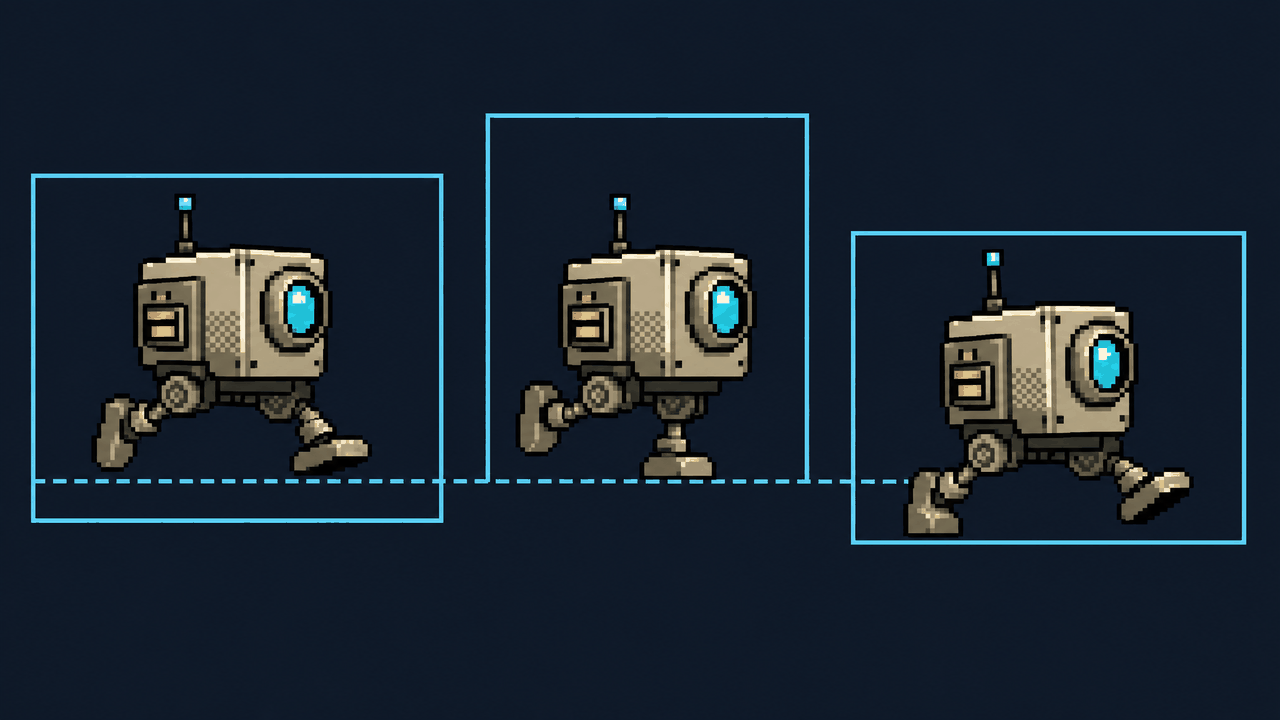
The cruel part: each frame looks perfect in isolation. The bug only exists in the relationship between frames, which is exactly the kind of thing that's invisible in a sprite previewer and screams the moment there's motion.
The fix is a shared, stable pivot
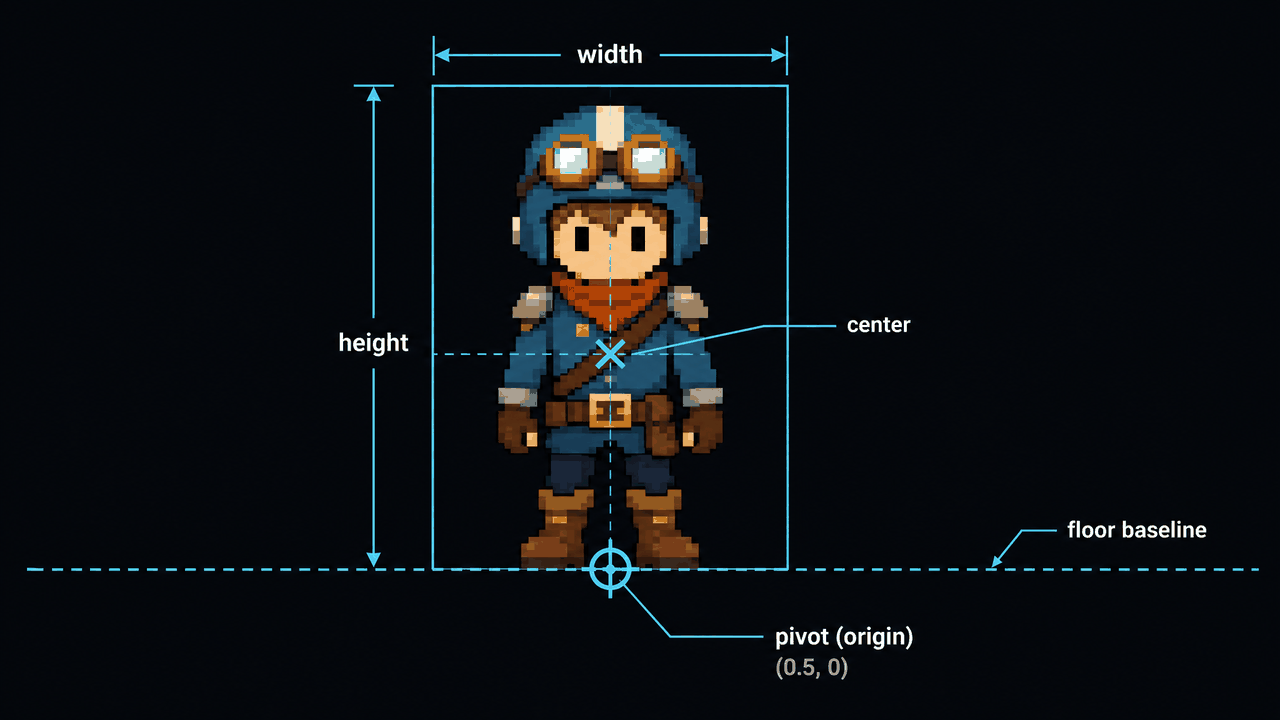
A pivot (also called the origin, or the anchor) is the single point in a sprite the engine treats as "the position." When your code sets transform.position, that's the point that lands there. Everything else is drawn relative to it. The entire fix for foot-slide is one rule:
Every frame in an animation needs its pivot at the same anatomical point on the character. For a grounded biped, that point is between the feet, at floor level. Put the pivot there on all 12 frames and the floor literally cannot move, because you've defined the floor as the thing that stays put.
There are two ways to get there, and they're not equally good.
Option A: don't trim per-frame, keep a uniform canvas
If every frame is the same 128x128 box and the character was drawn standing on the same baseline in every cell, the pivot is just a fixed offset (bottom-center of the canvas) and you're done. The foot doesn't slide because every frame shares the same coordinate space. This is why a lot of older hand-pixeled sheets "just work" without anyone thinking about pivots: the artist kept the feet on a consistent floor line inside a fixed cell.
The catch is you have to actually draw it that way, and AI-generated or auto-extracted frames almost never come out consistent. Hence option B.
Option B: trim, then re-pad to a uniform size with bottom alignment
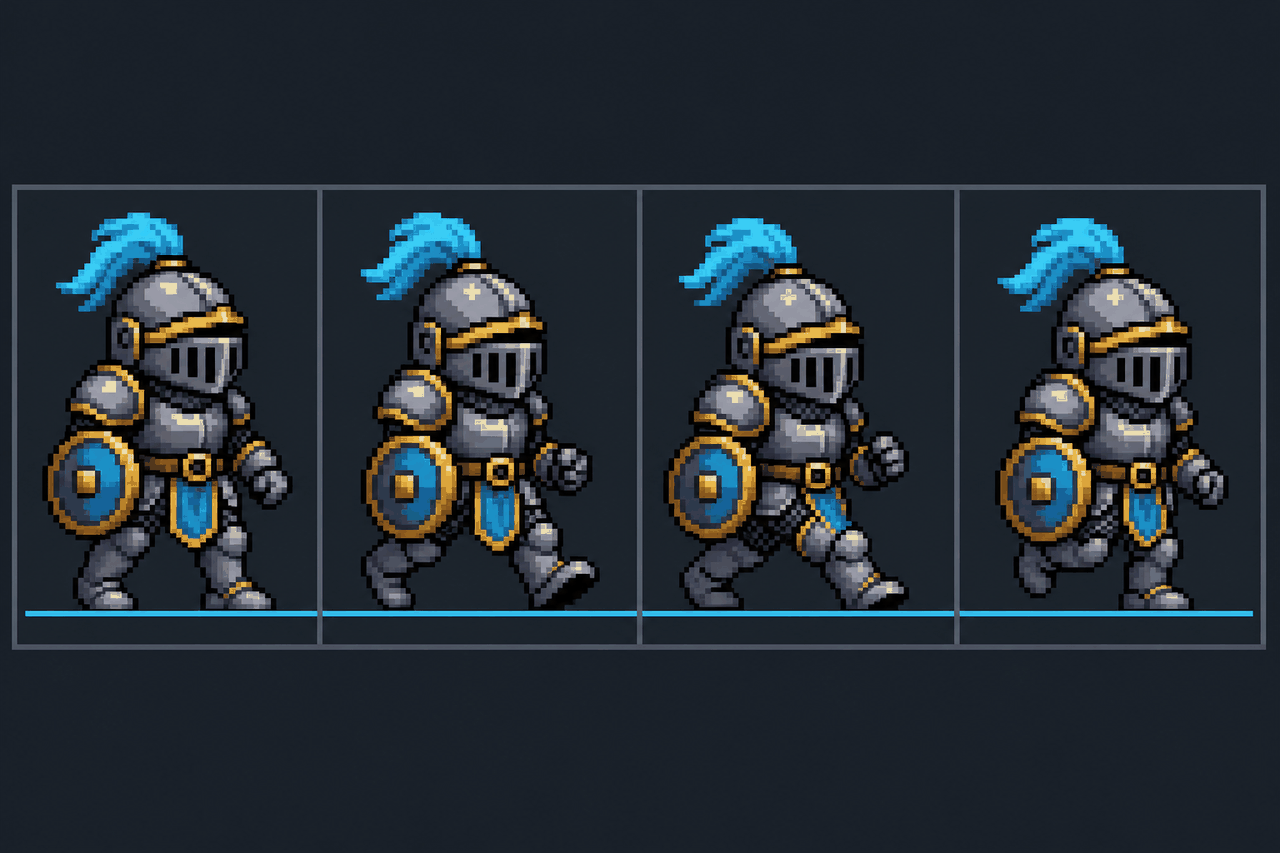
This is the workflow I lean on, and it's what Sprite Slicer is built around. You trim every frame to kill the transparent fat, then normalize all of them back onto one fixed square canvas. The key choice is the alignment mode used when re-padding:
- Bottom alignment: place each trimmed frame so its bottom edge sits on the canvas bottom, centered horizontally. The feet land on the same floor line every time. This is what you want for almost any standing/walking/running character.
- Source alignment: place each trimmed frame back where it was inside its original cell, preserving the offset the artist (or the generator) intended. Use this when the source sheet was already consistent and you just trimmed for packing, or for things that aren't floor-anchored.
Bottom alignment is the foot-slide killer for grounded characters. The horizontal centering handles side-to-side drift; the bottom edge handles the vertical bob. Combined, your planted foot stops moving.
One honest caveat: bottom-center is the right default, not a law. A character that crouches, a jump where the feet leave the ground, or an attack with a big forward lunge can legitimately want the pivot held at a fixed body point rather than re-floored every frame. For those, source alignment (or a hand-set pivot) is correct, because re-flooring a jump frame would yank the character back down to the ground mid-air. Match the alignment to what the motion is doing.
Uniform frame size matters even after you fix the pivot
Even with a correct pivot, mismatched frame sizes cause grief downstream. If you export 12 frames at 12 sizes and feed them to an engine importer, half the engines will re-derive the pivot from each frame's bounds and quietly undo your work. Worse, animation tools that expect a fixed cell size will misalign timing or refuse the import.
Normalizing every frame to the same square (say 128x128) with a consistent alignment gives you one clean contract: same size, same pivot offset, same baseline. The importer has nothing to second-guess. It also makes flipping for left/right facing trivial, because a horizontal flip around bottom-center keeps the feet planted; flip an off-center pivot and the character lurches sideways when it turns.
How Unity, Godot, and GameMaker handle the pivot
The concept is universal; the knobs differ. Knowing where each engine puts the control saves you from fighting it.
Unity
Unity calls it the Pivot in the Sprite Editor. Per sprite you get presets (Center, Bottom, Bottom Left, etc.) and a Custom pivot in normalized 0..1 coordinates, where (0.5, 0) is bottom-center. For a multi-sprite sheet you can set pivots one at a time or apply to all. Unity's pivot is normalized to the sprite's rect, which is exactly why uniform frame sizes matter: with identical frames, "bottom-center" means the same physical point everywhere. With ragged sizes it doesn't. Note Unity also has Sprite Mesh tightness and the auto-generated mesh, which can trim transparency at draw time, so pre-trimming and normalizing keeps that predictable.
Godot
In Godot 4 you usually animate with AnimatedSprite2D and a SpriteFrames resource, or Sprite2D with regions. The origin is controlled by Offset and the Centered property. Centered = true (the default) puts the origin at the texture center, which is the center-align trap all over again if your frames vary. Turn Centered off and use Offset to push the origin to bottom-center, or just keep uniform frames so the texture center is a consistent point. Godot won't auto-trim your frames, so what you import is what you get, which is actually nice for predictability.
GameMaker
GameMaker calls it the origin, set in the Sprite Editor with presets (Middle Center, Bottom Center, etc.) or exact x/y pixel values, and it applies to the whole sprite across all sub-images. Because the origin is shared by every frame of a GameMaker sprite, uniform frame size isn't optional here, it's assumed. Set the origin to Bottom Center for a walking character and your x/y in code is the point on the floor, which makes collision masks and depth sorting behave. GameMaker's trimming on import (Remove Background / crop) can shift things, so feed it clean, normalized frames.
A practical slicing checklist
- Slice the sheet on the real grid (columns/rows or frame size, accounting for any gaps and offsets). Auto-fit if you're unsure of the cell size.
- Auto-trim the transparent padding so atlas packing and pivot math aren't fighting dead pixels.
- Normalize every frame to one fixed square, using bottom alignment for grounded characters and source alignment for airborne or offset motion.
- Export and import without letting the engine re-derive pivots; set the origin once to bottom-center (or whatever you chose) and apply to all frames.
- Play it back with motion, not just frame-step, and watch the planted foot. If it's still, you're done.
If the frames come out of an AI video clip rather than a hand-drawn sheet, the inconsistency is usually worse, since the generator never promised a stable baseline. Pull the stills with the Video Frame Extractor, then run the same trim-and-normalize pass before they ever touch the engine. The fix is the same; the input is just messier.
None of this is glamorous, and it's the kind of thing nobody teaches you until your first run cycle skates across the floor in front of a playtester. Get the pivot right once, keep your frames uniform, and the whole class of bug disappears.
FAQ
Q. What's the difference between a sprite's pivot and its origin?
They're the same concept under different names. Unity and Godot tend to say pivot or origin/offset, GameMaker says origin. It's the single point in the sprite that the engine treats as its position, so when you set the object's coordinates that's the point that lands there. Everything else is drawn relative to it.
Q. Why do my sprites slide along the floor even though each frame looks fine?
Because the frames were trimmed to different sizes and then center-aligned. Centering rectangles of different heights and widths moves the bottom edge and horizontal center frame to frame, so the planted foot drifts. Each frame is correct on its own; the bug only exists in how they line up relative to each other. Bottom-center alignment with a shared pivot fixes it.
Q. Should I always use bottom-center alignment?
For standing, walking, and running characters, yes, that's the safe default. But motion where the feet leave the ground, like a jump, or a big forward lunge in an attack, can want the pivot held at a fixed body point instead. Re-flooring a jump frame would snap the character back to the ground mid-air. Use source alignment or a hand-set pivot for airborne or heavily offset motion.
Q. Do I really need every frame to be the same size if I set the pivot correctly?
Yes. Even with a correct pivot, ragged frame sizes cause engine importers to re-derive pivots per frame and undo your alignment, and some animation tools expect a fixed cell size. Normalizing to one square with a consistent alignment gives the importer one clean contract: same size, same pivot offset, same baseline. It also makes horizontal flipping for left/right facing keep the feet planted.
Q. Does center vs bottom alignment matter for non-character sprites?
Less so for things that aren't floor-anchored, like projectiles, particles, or UI icons, where center alignment is often what you want. The foot-slide problem is specific to grounded characters whose planted contact point needs to stay fixed. Pick the pivot to match what the sprite is anchored to: the floor for a walker, the center for a spinning coin.